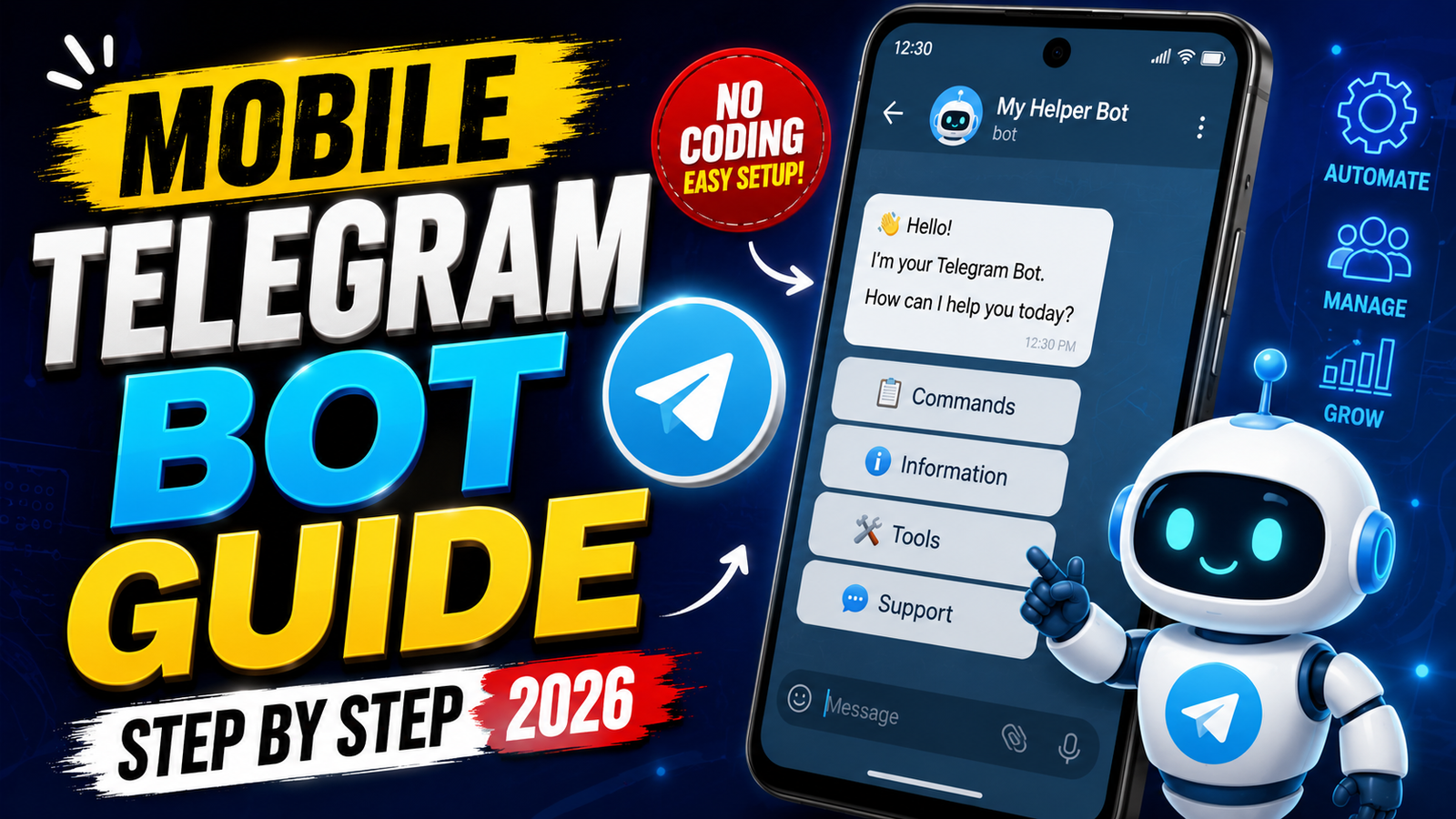
Telegram bots can automate a lot of repetitive tasks right from your phone. The problem: many people tap a bot link, hit Start, and have no idea what data they just shared or how the bot actually works.
This tutorial walks through using a Telegram bot on mobile using as a concrete example. You’ll see how to open it on Android/iOS, what each step does, and which privacy checks you should always do before trusting any bot.
1. What This Telegram Bot Actually Is (and Is Not)
On Telegram, a bot is basically an automated account controlled by software, not a human. Bots can:

- Respond to commands you send in chat
- Forward, process, or transform messages you share
- Connect to external websites and services
They cannot see your entire Telegram account on their own, but they can see:
- Messages and media you send directly to the bot
- Your public profile info (like name and username)
- Certain group content if you add the bot to a group (depending on permissions)
Before you rely on SocialMediaLeaksBOT (or any similar tool) for social media‑related actions, treat it like you would any third‑party service: useful, but only once you understand what data it might collect and how it behaves.
2. Safety Checklist Before You Tap Start
Do this quick check before interacting with any Telegram bot:

- Check the bot’s @username carefully. Make sure it exactly matches what you were given (no extra underscores, letters, or numbers).
- Read the bot profile bio. Most legit bots explain what they do and sometimes show a link to their website or support channel.
- Look for an About or /help command. A well‑made bot usually lists features, rules, and sometimes data usage basics.
- Avoid sharing passwords or 2FA codes. No real service will ever ask for your login code inside a Telegram bot.
- Be cautious with personal data. Avoid sending ID scans, banking info, or private chats to a bot.
If anything feels off like the bot asking for credentials, or promising illegal access to private accounts stop immediately.
Official App Listing
The open telegram resource button opens a Telegram resource connected to Mobile Useful Telegram BOT. Verify the channel identity and never share passwords, OTPs, payment details, or private account information.
3. How to Open the Bot on Android
You’ll need the official Telegram app installed from Google Play. Avoid third‑party mod Telegram clients they can break bots or put your account at risk.
- Install Telegram (if you haven’t).
Open Google Play > search for Telegram > install the official app by Telegram FZ LLC and sign in with your phone number. - Open the bot link.
From your Android phone, tap: https://t.me/SocialMediaLeaksBOT?start=Emgz9ao
Your browser should show a prompt like Open in Telegram?. Tap Open. - Check the bot profile.
Once Telegram opens, you’ll see the bot’s chat screen. At the top:- Tap the name or picture to open the profile.
- Read the description and any linked channel/website.
- Start the bot.
Back in the chat, tap the Start button at the bottom. Telegram will send a /start command automatically. - Wait for the welcome message.
The bot should reply with a greeting, some basic instructions, and possibly a button menu.
4. How to Open the Bot on iOS (iPhone)
On iPhone, the process is very similar, but the system prompts look a little different.
- Install Telegram from the App Store.
Search for Telegram Messenger by Telegram FZ LLC, install, and log in. - Tap the invite link in Safari/Chrome.
Open the same bot link: https://t.me/SocialMediaLeaksBOT?start=Emgz9ao
iOS will show a popup like Open this page in ‘Telegram’?. Tap Open. - Review the bot info.
On the bot chat screen:- Tap the bot name at the top to view details.
- Check the description and any external links.
- Tap Start.
In the chat, tap Start to initialize the bot and wait for its instructions.
5. Typical Bot Workflow on Mobile (Using SocialMediaLeaksBOT as a Model)
Every bot has its own feature set, but most follow a similar pattern after you hit Start:
- Welcome / intro message.
Usually explains what the bot does (e.g., social media monitoring, content alerts, tools) and may show quick action buttons. - Main menu.
Many bots provide a row of buttons like:- Help or How to use
- Settings or Language
- Specific features (e.g., Start monitoring, Check account, Get report)
- Input or configuration.
You may be asked to:- Send a username/link (for public pages only)
- Choose a content type or timeframe
- Confirm terms or usage rules
- Bot processing.
The bot might show a processing… message, then send results or further instructions.
Take time to read each message. Don’t rush through prompts, especially if the bot asks for any kind of account related data or login information those are red flags.
6. Common Mistakes When Using Telegram Bots on Mobile
Telegram bots feel casual, which is exactly why people make basic security mistakes. Watch out for these:
- Sending login codes or passwords.
Never share SMS codes, email codes, or 2FA tokens with any bot. If a bot claims it needs them to verify your account for another platform, that’s a huge warning sign. - Forwarding private chats or photos without thinking.
Anything you forward to a bot can be processed, stored, or used on external servers. Treat bots like external websites: only share what you’re comfortable giving away. - Adding bots to private groups blindly.
When you add a bot to a group, it may read messages (depending on permissions). Avoid adding unknown bots to family, work, or client groups. - Assuming every bot is official.
A bot mentioning Instagram, Twitter/X, or other platforms in its name does not mean it’s endorsed by them.
7. Privacy & Legal Considerations for Leak or Monitoring Bots
Bots positioned around leaks or social media checks can easily cross into grey areas if misused. To keep things safe and legal:
- Stick to public information. Only work with data that’s already publicly visible (e.g., public posts or profiles), and avoid anything that hints at unauthorized access.
- Respect platform rules. Social networks have terms of service. Using tools that break those rules can risk your accounts.
- Avoid stalking or harassment. Do not use monitoring bots to track or target individuals.
- Don’t treat bots as proof. Bot reports are not official evidence and can be wrong or outdated.
If a bot offers features that sound like hacking, breaking into private accounts, or bypassing platform security, do not use them.
8. How to Disable or Remove a Telegram Bot
If you decide a bot isn’t for you, it’s easy to stop using it from your phone:
On Android and iOS (similar steps)
- Open the bot’s chat.
- Remove it from groups.
If you added the bot to any group:- Open the group > tap group name at the top.
- Scroll to members > tap the bot > choose Remove.
- Block the bot.
In the bot’s direct chat:- Tap its name at the top.
- Tap the menu (⋮ or More).
- Select Block or Stop and block bot (wording can vary slightly by app version).
- Clear the chat history (optional).
You can delete the conversation from your device, but note that this does not necessarily erase data from the bot’s own servers.
9. When a Telegram Bot Is Actually Useful on Mobile
Used carefully, bots like SocialMediaLeaksBOT can be handy for:
<