Strong signal bars but painfully slow internet? On many Android phones you can use hidden service codes and a few smart settings tweaks to understand what’s going wrong and, in some cases, fix it.
This guide focuses on Android only methods: useful dialer codes, network menus, and system options that help you test and improve mobile internet performance. No hacks, no shady apps just built‑in tools most people never touch.
Before You Start: What These Android Codes Can (and Can’t) Do
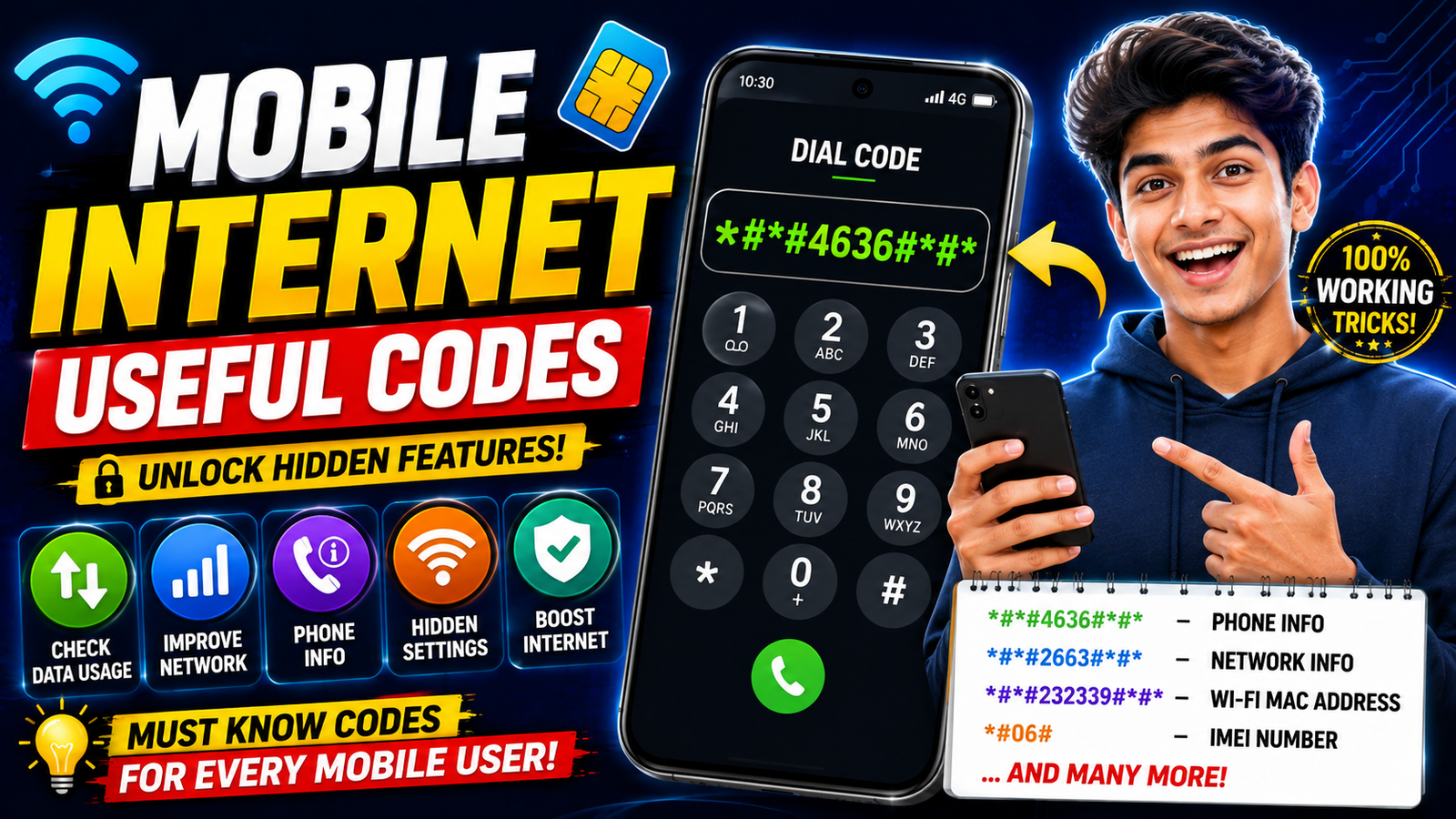
Android secret codes are special numbers you dial (like *#*#4636#*#*) that open internal testing menus. They are mainly for diagnostics.

They can help you:
- See real signal strength in dBm (more accurate than bars).
- Check if you’re on 2G, 3G, 4G, or 5G in real time.
- Change preferred network type (for example, force LTE only on some phones).
- Spot issues like frequent disconnects or very weak signal.
They cannot magically:
- Bypass your operator’s data limits or fair usage throttling.
- Turn a weak tower into a strong one.
- Give you free internet or anything similar.
Think of these codes as tools to tune and troubleshoot your connection. If your mobile operator is throttling or your area simply has poor coverage, no code will fully fix that. But you can avoid self‑inflicted speed problems and get the best out of the network you have.

1. Open the Android Testing Menu with *#*#4636#*#*
The most useful general code on many Android devices is:
Dial: *#*#4636#*#* (do not press Call; the menu usually appears automatically)
What you may see:
- Phone information
- Battery information
- Usage statistics
- Wi‑Fi information
Tap Phone information to see your live mobile network details.
Note: Some manufacturers (especially newer Samsung, Xiaomi, Realme, etc.) may block or change this menu. In that case, jump to the sections on normal Settings methods further below.
2. Read Your Real Signal Strength (Not Just Bars)
Inside Phone information, look for:
- Signal strength or RSRP (for LTE/5G) typically shown in dBm.
- Network type such as LTE, HSPA, NR (5G), EDGE, etc.
How to read dBm:
- About 70 dBm to 90 dBm usually strong.
- Between 90 dBm and 105 dBm usable but weaker.
- Below 105 dBm poor; speed may drop a lot.
If your dBm value is very low, even perfect settings will not give you great speed. In that case, moving closer to a window, going outside, or changing rooms can visibly improve performance.
3. Adjust Preferred Network Type for Better Data
In the Phone information testing screen, there is often a dropdown for Set preferred network type.
On many phones you might see options like:
- LTE only / LTE
- LTE/TD SCDMA/WCDMA
- LTE/WCDMA
- WCDMA only (3G)
- GSM only (2G)
- NR/LTE (for 5G models)
Practical recommendations:
- For most users: choose an option that includes LTE (4G) and your local 3G type (for example, LTE/WCDMA). This gives you the best mix of speed and stability.
- For areas with strong 4G but unstable 3G/2G: some people prefer forcing LTE only to avoid unnecessary switching. Be careful: calls may fail if your network still uses 3G/2G for voice and your phone doesn’t support VoLTE well.
- Force 3G or 2G only: useful only for testing, or if your operator’s 4G is broken in your area. For daily use, it usually slows data down.
After changing the network mode, wait 10 20 seconds to see if the signal and network type stabilize. Then run a speed test to compare.
Safer alternative via Settings (for phones where the code is blocked):
- Open Settings > Network & Internet (or Connections).
- Tap Mobile network.
- Look for Preferred network type or 5G/4G/3G/2G (Auto).
- Pick the highest available automatic option (for example, 5G/4G/3G/2G (auto) or 4G/3G/2G (auto)).
4. Use Codes to Check Data Activity and Ping
Inside the same *#*#4636#*#* test menu, some devices show:
- Ping test button
- Data connection state (connected/disconnected)
- Data service (in service/out of service)
You can use these to quickly verify whether the phone is actually talking to the internet or just connected to the tower.
How to use it:
- Tap Run ping test (wording may vary).
- Watch the ping and packet loss values.
If pings fail or there’s constant packet loss while your signal is fine, the issue is more likely on the operator side or due to network congestion, not your phone.
Official App Listing
The view file resource button opens a third-party file or document page related to Mobile Internet Useful Codes. Review the owner, sharing status, and file type before copying, installing, or entering private information.
You can optionally store screenshots or logs of your network tests in the creator’s provided Google Drive folder for later comparison or troubleshooting. This is useful if you’re following along with a video or sharing results with a technician. Before sharing any files, manually review them to ensure no personal information (phone number, account ID, GPS location) is visible.
5. Useful Manufacturer Codes (May Vary by Brand)
Beyond the generic Android test menu, many brands have their own service codes. Some examples that often work, but are not guaranteed:
- Samsung: *#0011# Service mode with detailed LTE info on many models.
- Some MTK/Qualcomm devices: *#*#4636#*#* is still the main one for network info.
Important warnings:
- Do not change settings you don’t understand in service menus (band locking, debug options, etc.). They can break calls, SMS, or data.
- Some codes online are outdated or fake clickbait. Always test safely and back out if you’re not sure.
6. Fix Common Speed Killers in Android Settings (No Codes Needed)
Certain Android settings hurt your internet speed more than a weak signal. Check these before blaming your operator.
a) Reset APN to Default
Incorrect APN (Access Point Name) settings can turn a fast network into a slow mess.
- Go to Settings > Network & Internet > Mobile network.
- Tap Access Point Names.
- Tap the menu (⋮) > Reset to default or pick the official APN from your operator.
After resetting, toggle Airplane Mode off/on and test your speed again.
b) Reset Network Settings (Last Resort on Your Side)
If your phone has gone through many SIMs or tweaks, a full network reset may help.
- Open Settings > System > Reset options (wording may vary).
- Tap Reset Wi‑Fi, mobile & Bluetooth.
- Confirm.
This will remove: saved Wi‑Fi networks, paired Bluetooth devices, and custom APN settings. It will not delete your apps or photos.
c) Turn Off Background Data Hogs
Sometimes the network is fine, but apps in the background are eating your bandwidth.
- Go to Settings > Network & Internet > Data usage.
- Tap Mobile data usage.
- Check which apps used the most data in the last 24 hours or week.
- Tap heavy apps and toggle off Background data if you don’t need them syncing constantly.
This alone can make your browser and streaming apps feel much faster on limited connections.
7. Realistic Ways to Improve Mobile Internet Speed
Once you’ve used codes and menus to understand your network, here are concrete changes that often help:
- Move to a better signal spot: near a window, away from basements or thick concrete walls.
- Use the fastest SIM slot: on some older phones, only one SIM slot supports 4G/5G properly. Check your phone’s manual.
- Update carrier services & system apps: via the Play Store and system update menu.
- Switch band/technology only if needed: use network type settings to avoid staying stuck on 3G/2G when 4G/5G is stable.
- Contact your operator: if your tests show very high ping and packet loss at all times, the issue is likely the