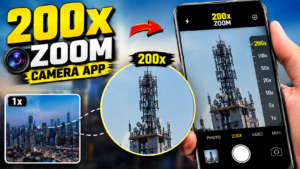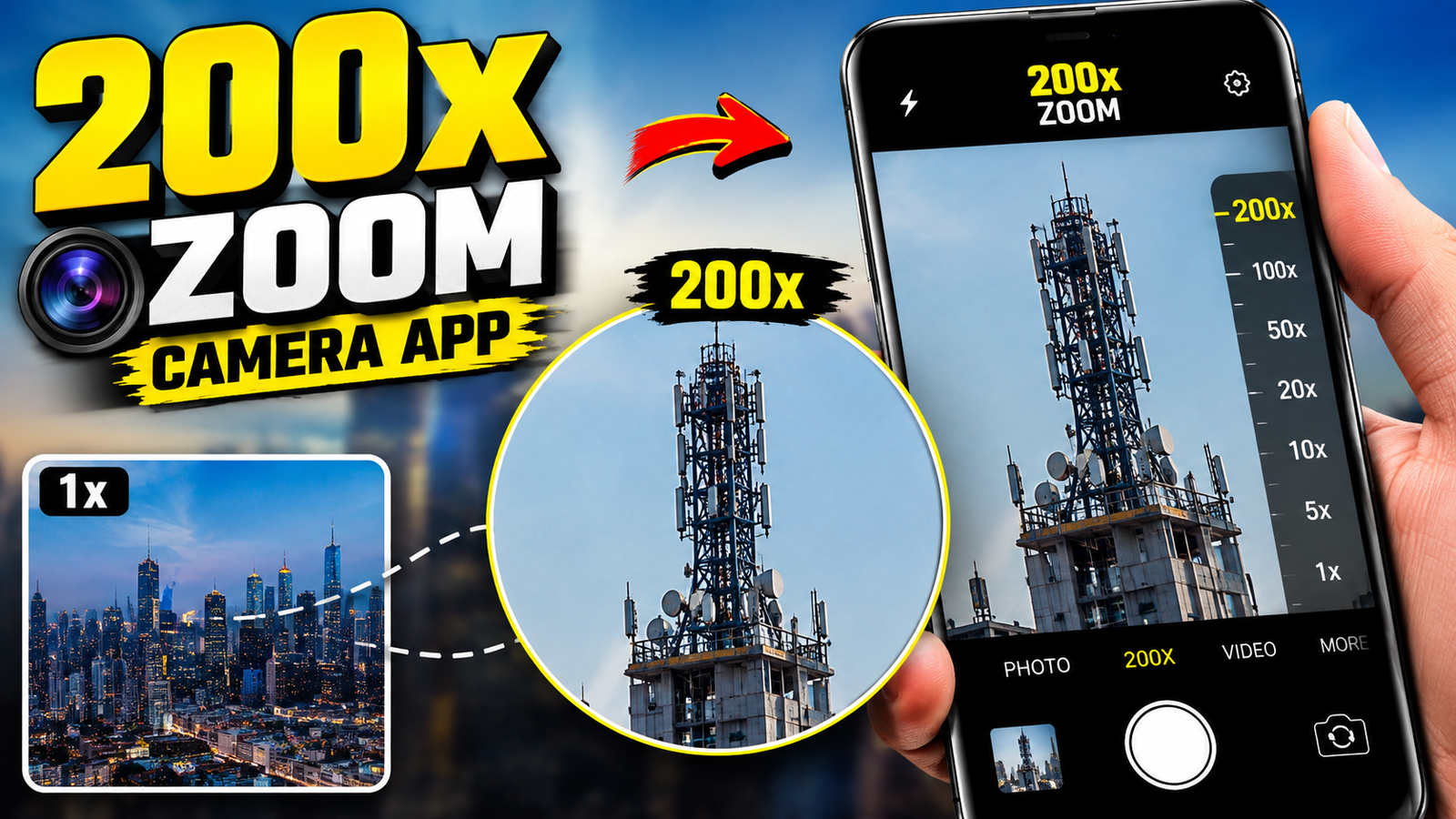
Zooming in on something far away usually exposes the weakest part of a phone camera: you tap to zoom, and the image turns into a blocky mess. A 200x zoom camera app promises to fix that, but the reality is more nuanced.
This guide explains how a high‑zoom camera app (like Khalid’s Mega Zoom Camera XZoom on Google Play) works, what it can and cannot do for low‑quality phones, and how to set it up on Android and iOS for the best possible long‑distance photos.
What a 200x Zoom Camera App Actually Does
Before installing anything, it helps to be clear about expectations. No app can magically change your phone’s physical camera lens. 200x zoom in most apps is a combination of:

- Digital zoom and cropping enlarging the center of the image and upscaling it.
- Image processing sharpening, denoising, and contrast tweaks to make the zoomed image appear clearer.
- User interface tricks smooth zoom sliders, preview windows, and stabilization overlays that make high zoom easier to handle.
On a low‑quality or older phone camera, that can still be useful: you get more control than the basic stock app and sometimes better processing. But at 100x 200x zoom, expect:
- Visible noise and grain, especially in low light.
- Shaky framing unless you stabilize the phone.
- Limited detail if the original sensor is weak.
Think of these apps as tools to manage and slightly enhance extreme zoom, not as a replacement for a real telephoto lens.
Who a 200x Zoom Camera App Is Useful For
This kind of app makes the most sense if you:

- Often photograph distant signboards, presentations, or documents and need them readable later.
- Like capturing birds, buildings, or landscapes from far away but only have a basic phone camera.
- Regularly shoot sports events, concerts, or stage shows from the back of the venue.
- Have an older Android or iPhone with limited built‑in zoom features.
If your phone already has a strong telephoto camera (for example, 3x or 5x optical zoom plus good digital zoom in the stock app), a third‑party 200x zoom app might only add minor benefits.
Safety and Download Tips (Android & iOS)
The app mentioned in the brief, Mega Zoom Camera XZoom by Khalid, is published on Google Play for Android. That’s the safest place to get it. Avoid any APK mirrors or mod versions that promise extra features; they can bundle malware or aggressive ads.
- Android: Use the official Google Play listing only. Do not install random APK files from unknown websites.
- iOS: This specific app appears Android‑only at the time of writing. iPhone users can search the App Store for super zoom camera or similar, but should stick to well‑reviewed apps, and read recent comments to see if quality is still acceptable.
Always review permissions carefully. A zoom camera app will need camera and often storage/photos access. Be wary of extras like location access if there’s no clear reason for it.
Below is the official Android listing mentioned in the brief, for readers who want to check it in more detail.
Official App Listing
The open on google play button opens the Google Play listing related to Mobile Camera App Upto Zoom 200X. Check the developer name, permissions, reviews, and update date before installing.
How to Set Up the 200x Zoom App on Android
Steps may vary slightly by device and app version, but this is the usual flow when setting up a high‑zoom camera app like Mega Zoom Camera XZoom.
1. Install from Google Play
- Open the Google Play Store on your Android phone.
- Search for Mega Zoom Camera XZoom or use the official link provided by the developer.
- Check the developer name (should mention just4funtools / Khalid) and read the recent reviews.
- Tap Install.
2. Grant Camera and Storage Permissions
- Open the app after installation.
- When prompted, allow Camera access so it can capture photos and video.
- Allow Storage/Photos & media access if you want to save images to your gallery.
- If it requests location, consider tapping Only while using the app or Deny unless there is a clear geotag feature you actually need.
You can always revisit permissions later via Settings > Apps > [App name] > Permissions.
3. Learn the Zoom Controls
Most high‑zoom camera apps provide multiple ways to zoom:
- On‑screen slider: A bar at the bottom or side showing zoom levels like 1x, 10x, 50x, 200x.
- Pinch gesture: Two‑finger pinch in/out, similar to your regular camera.
- Preset buttons: Quick taps for common levels (e.g., 10x, 50x, 100x).
Spend a few minutes just moving through the zoom range without taking photos, to see where your phone’s image starts to break down. For many low‑end devices, you’ll find that 20x 40x is the sweet spot; 100x+ is mainly for framing something very distant when quality is less critical.
How to Get the Best Quality from a 200x Zoom App
The app can give you more reach, but technique still matters. These tips make a bigger difference than most people expect.
1. Stabilize the Phone First
At 50x or 100x zoom, even small hand movements turn into huge shakes on screen. Try to:
- Lean your phone against a wall, railing, or table.
- Hold the phone with both hands and tuck your elbows into your body.
- Use a cheap mini tripod or phone clamp if you plan to zoom a lot.
This alone will make your long‑distance shots look significantly sharper.
2. Use Good Light Whenever Possible
Digital zoom and low light are a bad combination. For clearer results:
- Shoot in daylight or bright indoor lighting.
- Avoid backlighting where your subject is against a bright sky.
- If shooting at dusk or indoors, lower the zoom slightly (for example from 80x down to 40x) to reduce noise.
3. Don’t Always Max Out at 200x
Many users crank the slider to the maximum and then blame the app for muddy photos. A more realistic approach:
- Use moderate zoom (10x 40x) when you care about detail.
- Reserve 100x 200x for quick what is that over there? shots where simply seeing the shape is enough.
You can always crop slightly afterward in an editor, which may look cleaner than relying on extreme in‑app zoom.
4. Try the App’s Built‑In Filters Carefully
Some zoom apps offer sharpening or HD filters. These can help, but overdoing them creates harsh halos and fake‑looking edges.
- Start with low sharpening and compare before/after.
- Avoid heavy noise reduction, which can make skin and textures look plastic.
Common Mistakes and How to Fix Them
Mistake 1: Expecting Optical‑Lens Quality from a Budget Phone
Even the best zoom app cannot match a phone with a dedicated telephoto lens. If your base camera is very weak, treat the app as a convenient viewer, not as a professional tool.
Fix: Stay within the zoom range where your phone still captures usable detail, and lower your expectation for 100x+ shots.
Mistake 2: Shooting Video at Maximum Zoom Without Support
Handheld 200x video will look jittery and can cause focus hunting.
Fix: Use a tripod or prop the phone on something solid. If that’s not possible, lower the zoom until the video looks watchable.
Mistake 3: Ignoring Storage and Battery Impact
High‑zoom photos and especially video can take larger file sizes and run continuous processing, which drains battery faster.
Fix:
- Keep an eye on available storage before big shooting sessions.
- Carry a power bank for long events.
- Lower resolution in the app’s settings if it offers that option.
Privacy and Responsible Use
Powerful zoom can raise privacy questions. Just because you can zoom 200x doesn’t mean you should in every situation.
- Don’t use extreme zoom for spying on people in private spaces such as homes, apartments, or through windows.
- At events or public places, be respectful if someone clearly doesn’t want to be photographed.
- Check local laws about recording in private premises, concerts, or ticketed venues.
From a data perspective, review if the app offers a privacy policy link on its store page. Check whether it uploads analytics or crash logs, and decide if you’re comfortable with that.
Using a Zoom Camera App on iOS: What to Know
Since Khalid’s Mega Zoom Camera XZoom is focused on Android, iOS users will need an alternative. On iPhone:
- First test the built‑in Camera app. Apple’s digital zoom is often better than many third‑party tools, especially on newer devices.
- For extra control, look for manual camera or pro camera apps in the App Store that support higher zoom controls and manual exposure.
- Avoid any app that asks you to install configuration profiles or step outside of the App Store.
The same principles apply: good light, stable hands (or a tripod), and moderate zoom are where you’ll see the most real‑world improvement.
Should You Rely on a 200x Zoom App for Everyday Photos?
For normal portraits, food, and nearby scenery, your stock camera app is usually better optimized. A 200x zoom camera app is a special‑purpose tool for those moments when your subject is simply too far away.
If your original mobile camera is low quality, an app like Mega Zoom Camera XZoom can still help you:
- Frame distant objects more