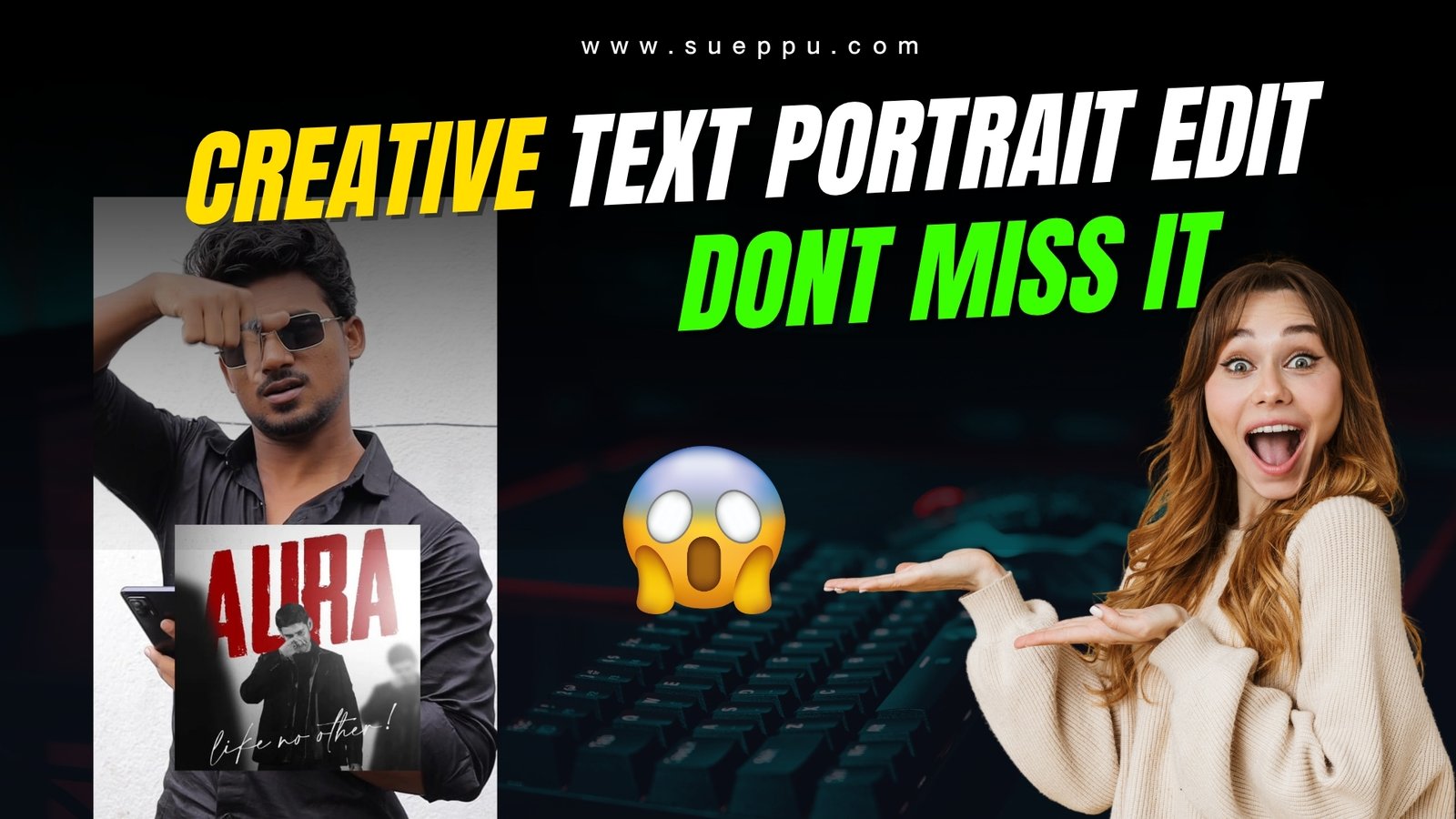
Creating a Creative Text Portrait Edit in Picsart is a fun and artistic way to combine typography with photography, producing a visually stunning design. This style transforms your image into a unique blend of text and portrait elements that stand out on social media or personal projects.
The first step is to choose a high-quality portrait photo with good lighting and clear facial details. This ensures the text overlay blends naturally with the contours of the face and background.
In Picsart, start by importing your photo and then use the “Text Tool” to add your desired words, phrases, or quotes. You can choose a meaningful message, song lyrics, or even random typography for an abstract effect.
Next, experiment with different fonts and styles to match your desired theme—bold for impactful edits, cursive for elegant looks, or modern sans-serif for a clean aesthetic. Picsart offers a wide variety of font options to enhance creativity.
Using the layer blending modes, adjust the transparency of the text so it merges beautifully with the photo. The “Overlay” or “Multiply” settings often give a professional double-exposure effect.
You can also curve or wrap the text around facial features, creating a more dynamic and 3D appearance. This technique helps the portrait maintain depth while still showcasing the typography.
To make the design pop, apply color gradients or textures to the text, ensuring it contrasts yet complements the photo’s tones. You might also match the text color to certain elements in the portrait for a cohesive look.
Finally, fine-tune with filters, shadows, and highlights in Picsart to balance the overall composition, making sure the portrait and text blend seamlessly without one overpowering the other.
Once complete, export your design in high resolution, ready to share across platforms or print as custom artwork. This creative text portrait style is not only eye-catching but also a personal way to turn a simple photo into a statement piece.
After blending the text with your portrait, try masking certain areas so parts of the face remain untouched, creating a balance between readable text and visible facial details. This masking technique is great for highlighting the eyes or smile while still maintaining the typography effect.
You can also experiment with double exposure layering—add a secondary background image (like a cityscape, forest, or abstract pattern) and combine it with the text. This creates a richer, more cinematic vibe that feels like professional graphic design.
Another trick is to use different text sizes and weights within the same portrait. Larger, bold words can emphasize powerful parts of your message, while smaller text fills in subtle areas for texture. This variation keeps the viewer’s eyes moving across the artwork.
If you want the portrait to feel more 3D, try adding light flares, glow effects, or soft shadows to the text so it appears to float above the face rather than being flat on top of it.
Picsart also allows layer duplication—you can duplicate your text layer, blur the bottom one slightly, and change its color to create a glowing outline effect around the typography.
Lastly, remember to crop and frame the final image for the platform you’re sharing it on. A square format works well for Instagram, while vertical is better for Reels or Stories.
Done right, this type of edit doesn’t just look like a random filter—it feels like a piece of digital art you could sell or showcase in a creative portfolio.